

Accéder à l'outil
L'accès à l'outil est soumis au droit "Voir les droits sur un contexte", disponible dans le groupe "Utilisateurs et Droits"
Le bouton "Voir les droits" est disponible dans les rubans contextuels (par exemple contenu, page).
Exemple sur une page :
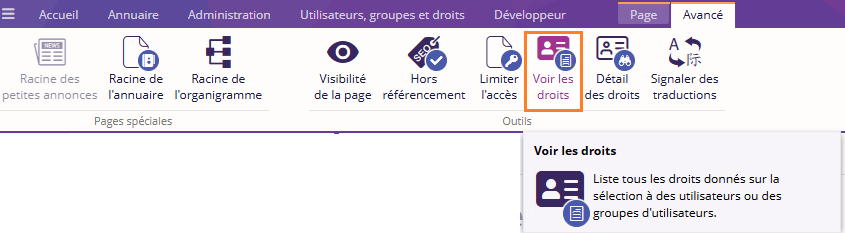
Le bouton "Voir les droits" est également disponible dans l’onglet "Utilisateurs, groupes et droits", au niveau du groupe Assignation.

Description de l'outil
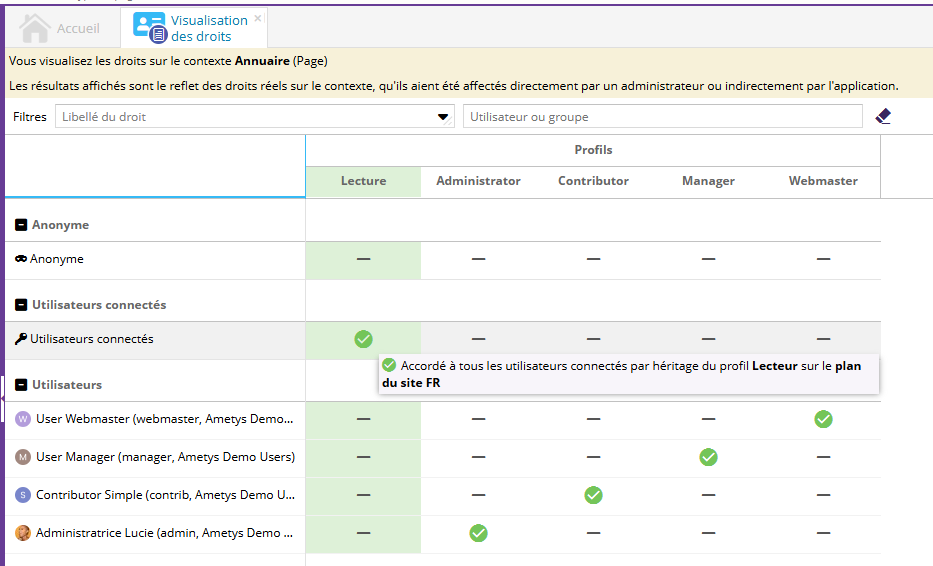
L'outil affiche la liste des profils assignés sur le contexte sélectionné.
Un bandeau jaune en haut de l'outil donne l'information du contexte.
Icône
Dans le tableau, deux types d'icônes sont utilisées :
- Icône avec fond plein (
 ): le droit concerne directement l'utilisateur ou un de ses groupes.
- Icône avec fond transparent (
 ) : le droit résulte d'une affectation sur 'anonyme' ou 'Utilisateurs connectés'.
Le tooltip sur l'icône fournit les informations sur les droits positionnés.
Filtres
Deux filtres sont disponibles :
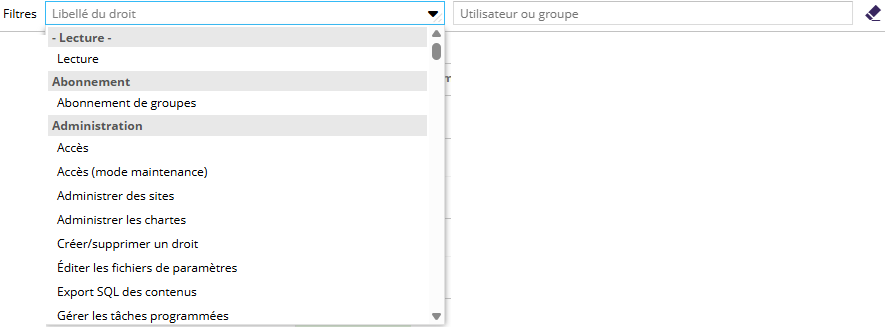
- Sur un droit (le filtre propose la liste des droits avec leur catégorie associée) : permet de filtrer les profils qui contiennent le droit recherché
- Sur un utilisateur ou groupe : seule les utilisateurs ou groupes répondant au filtre sont affichés en ligne.
Visualiser les droits sur un contexte
L'outil affiche les droits pour la sélection courante, si celle-ci est supportée par l'outil (voir la liste ci-dessous).
S'il n'y a pas de sélection, l'outil affiche les droits sur le contexte général.
La sélection courante est supportée pour :
- Page
- Utilisateur
- Formulaire
- Ressource
- Contenus (Petite annonce, article, ODF, etc.)
- Entrée de table de référence
- Extractions
- Répertoire de requêtes
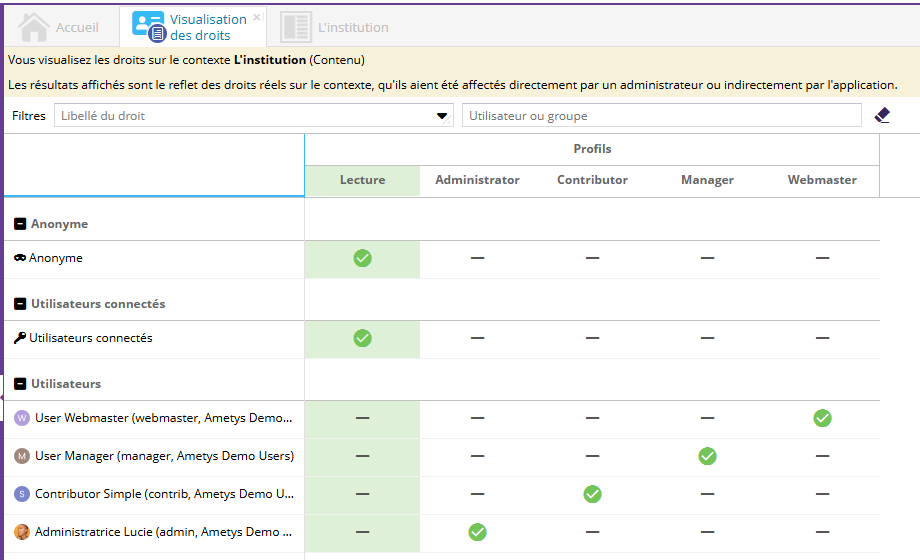
Dans l'exemple ci-dessous, le contexte est un contenu :
 Retour en haut