

- Présentation générale
- Filtre
- État d'avancement du cycle de vie MCC
- État d'avancement du cycle de vie pilotage
- Règles d'obtention: dérogations et règles additionnelles sollicitées
- Exports
Le tableau de bord du pilotage affiche les statistiques relatives au cycle de vie pilotage, au cycle de vie MCC et aux règles d'obtention du diplôme.
Le tableau de bord du pilotage est disponible à partir de la version 4.8
Présentation générale
L'outil Tableau de bord est disponible sur l'onglet Offre de formation dans l'onglet Pilotage :
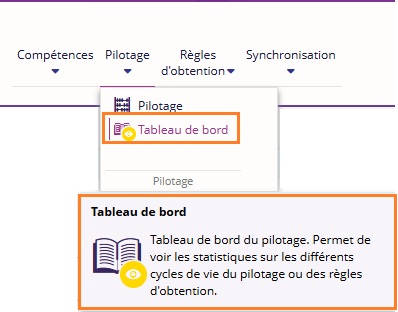
L'accès au tableau de bord du pilotage est lié au droit "Tableau de bord du pilotage" disponible dans le groupe "Offre de formation - Pilotage".
L'outil se décompose en 3 parties :
-
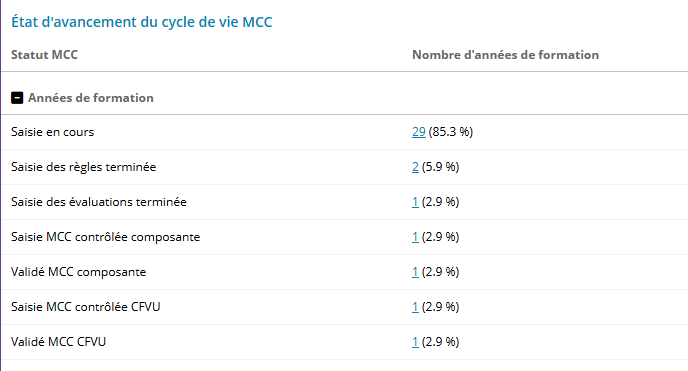
État d'avancement du cycle de vie MCC : pour chaque statut du cycle de vie MCC, le nombre d'années de formation dans cet état est affiché.
- État d'avancement du cycle de vie pilotage : pour chaque statut du cycle de vie pilotage, le nombre de formations dans cet état est affiché
- Règles d'obtention : dérogations et règles additionnelles sollicitées : pour chaque thématique, le nombre d'années de formations sur lesquelles une dérogation est saisie est affiché.

Filtre
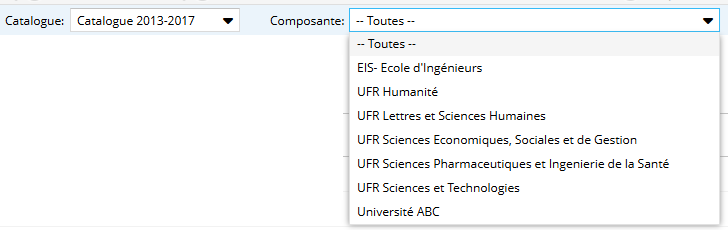
Une zone de filtre est disponible en haut de l'outil et permet de filtrer selon :
- le catalogue
- la composante
État d'avancement du cycle de vie MCC
Pour chaque statut du cycle de vie MCC, le nombre d'années de formation dans cet état est affiché.
Une entrée "Données invalides" est disponible à partir de la version 4.9. et liste des années de formation ayant des données manquantes ou invalides empêchant d'avancer le cycle de vie.
Cette entrée est présente si la configuration de la politique de restriction des MCC est valuée à "Force la valeur par ruissellement" pour le régime.
Une info bulle sur le nombre d'années affiche le nombre d'années de formation ainsi que le nombre total d'années
Au clic sur un chiffre souligné, une recherche sur les conteneurs de type année, dans cet état (dans cet exemple, le critère statut MCC est filtré sur "Saisie en cours") est ouverte dans un nouvel onglet :

Pour plus de détails sur le cycle de vie MCC, veuillez consulter cette page.
État d'avancement du cycle de vie pilotage
Pour chaque statut du cycle de vie pilotage, le nombre de formations dans cet état est affiché. 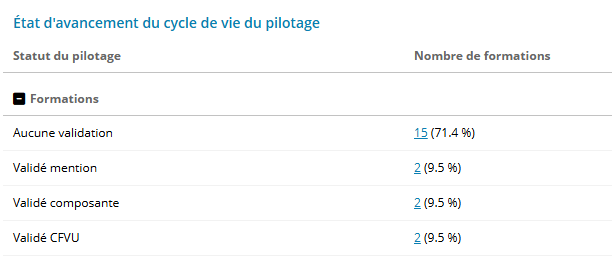
Une info bulle sur le nombre de formations affiche le nombre de formations ainsi que le nombre total de formations 
Au clic sur un chiffre souligné, une recherche sur les formations , dans cet état (dans cet exemple, le statut du pilotage est filtré sur "Validé mention") est ouverte dans un nouvel onglet :

Pour plus de détails sur le cycle de vie pilotage, veuillez consulter cette page.
Règles d'obtention: dérogations et règles additionnelles sollicitées
Cette colonne affiche, par thématique, le nombre d'années de formations sur lesquelles une dérogation est saisie.

Une info bulle sur le nombre d'années affiche le nombre d'années de formation ainsi que le nombre total d'années 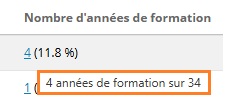
Un clic sur la règle standard ouvre celle-ci en visualisation dans un nouvel onglet
Au clic sur un chiffre souligné, une recherche sur les conteneurs de type année, possédant une dérogation sur la règle standard précisée (dans cet exemple, Assiduité) est ouverte dans un nouvel onglet :

Pour plus de détails sur les thématiques et les règles standard, veuillez consulter cette page.
Exports
3 exports CSV sont disponibles sur le tableau de bord :
Exporter les dérogations
Exporte au format CSV toutes les règles dérogées sur le catalogue et la composante sélectionnés.
Exporter les règles additionnelles
Exporte au format CSV toutes les règles additionnelles sur le catalogue et la composante sélectionnés.
Exporter les règles complémentaires
Exporte au format CSV toutes les règles complémentaires sur le catalogue et la composante sélectionnés.
 Retour en haut