

Create a new course
Create a new training course in the Training courses tab, New training course button.

A pop-up window opens
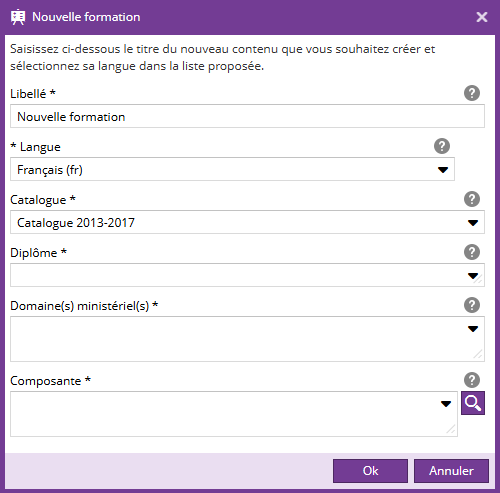
There are several fields to fill out:
|
Parameter |
Description |
Mandatory |
|---|---|---|
|
Wording |
Training title |
Yes |
|
Language |
Drop-down menu for selecting the content language |
Yes |
|
Catalog |
The training catalog is used to manage versions of the school's training offer. |
Yes |
|
Diploma |
Training diploma |
Yes |
|
Ministry(ies) |
Drop-down list to select the ministry responsible for training |
Yes |
|
Component |
Drop-down list for selecting the component |
Yes |

Once the parameters have been validated, the course is displayed in a new tab.

This is the training sheet as it will be published on the site.
This sheet will be integrated into a page (with the banner, menus... the rendering depends on your graphic charter), so this training will have a specific URL (web address).
To modify the course later, please follow the instructions on the " Modifying the Course Offering" page .
Add a route
To add a course to the new training program:
From the course layout, click the "New Course " button (Organization group) (orange box) on the Course tab

Create a new course
Click on " New Route"
A pop-up appears
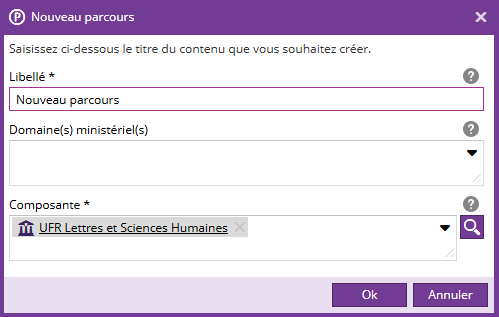
There are several fields to fill in:
|
Field |
Description |
Is it compulsory? |
|
Wording |
Course Name |
Yes |
|
Ministerial area(s) |
Drop-down list to select the ministry responsible for training |
No |
|
Component |
The training component is automatically entered in this field Drop-down list for selecting the component |
Yes |

Click OK. Your new route will appear in a tab on the right side of the app.
To modify the program, please follow the instructions on the " Modifying the Program" page.
You can add as many courses as you like.
You can add as many routes and containers to a route as you like.
Add an existing route
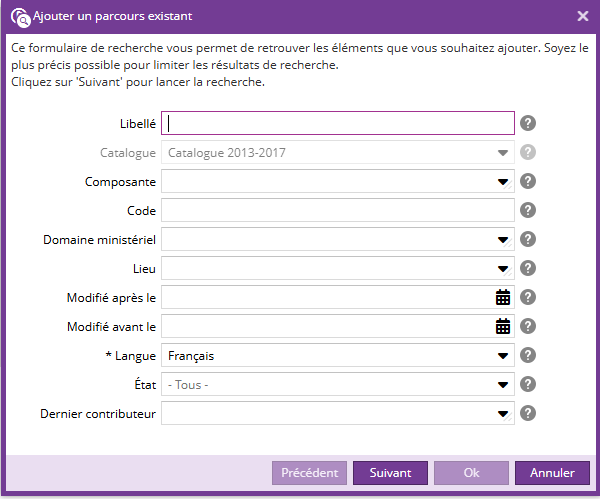
Click "Search for a route"; a window will open where you can enter the search criteria for an existing route:
Add a container
To add a container to the new configuration:
From the course layout, click theNew Container button( Organization group) (highlighted in orange) on the Course tab

You can also add a container from the "Path" tab
Create a new container
Click on " New Container"
A pop-up appears
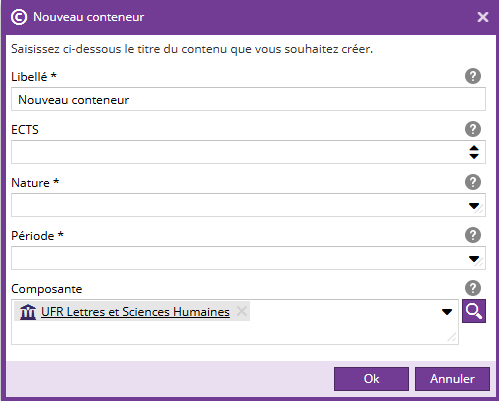
Please fill in the following fields:
|
Field |
Description |
Is it compulsory? |
|
Wording |
Container name |
Yes |
|
ECTS |
ECTS credits |
No |
|
Nature |
Drop-down list to select the container type |
Yes |
|
Period |
Drop-down list to select the container's time period |
Yes |
|
Component |
The training component is automatically entered in this field Drop-down list for selecting the component |
No |
Click OK. Your new container will appear in a tab on the right side of the application.
To edit the container, please follow the instructions on the"Editing the Course Offering" page.
You can add as many containers as you like.
You can add as many routes and containers to a container as you like.
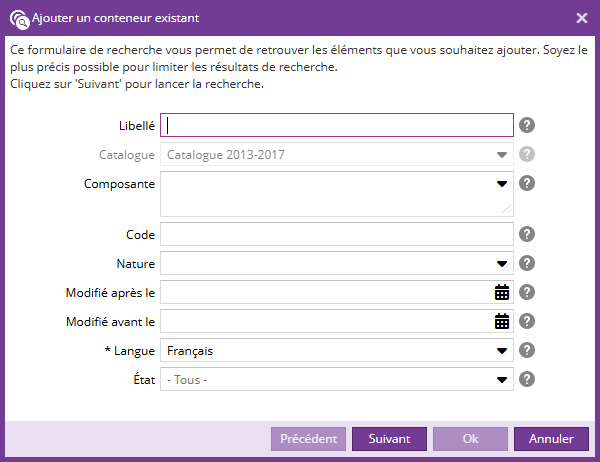
Search for an existing container
Click "Search for a container"; a window will open where you can enter the search criteria for the existing container:
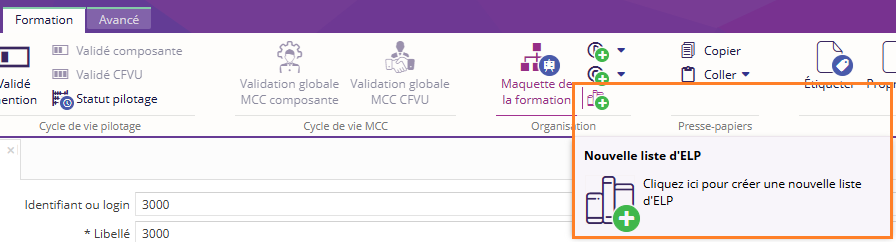
Add a newELP list
To add a newELP list, click the " NewELP List" button, " " group, "Organization" (orange box)
A pop-up appears
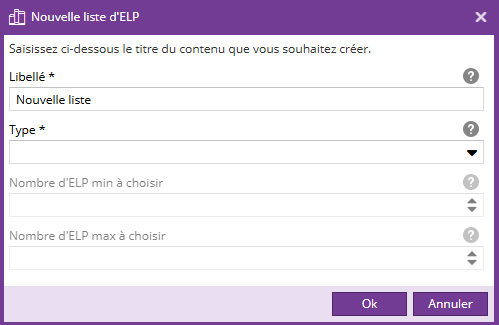
It has several fields to fill in:
|
Field |
Description |
Is it compulsory? |
|
Wording |
Wording of theELP list |
Yes |
|
Type |
Drop-down list ofELP list types
|
Yes |
|
ELP number ofELP to select |
This field is available when selecting the"Multiple Choice" drop-down list type.
Minimum number of educational resources to select |
No |
|
ELP number ofELP to select |
This field is available when selecting the"Drop-down" list type .
Maximum number of educational resources to select |
No |

After clicking OK, theELP listELP created.
To edit the listELP, please follow the instructions on the "Editing the Course Offerings" page.
You can add as manyELP lists to an element as you like.
You can add as manyELP as you like to a list ofELP .
Add a ELP
An ELP be added to anELP listELP by clicking the"Add ELP " button ELP the list (after selecting anELP list).

Create a new ELP
Click on New ELP
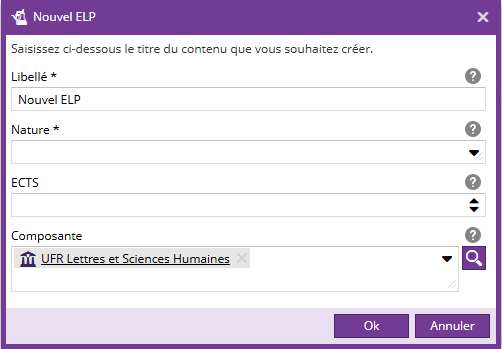
Several fields must be filled in:
|
Field |
Description |
Is it compulsory? |
|
Wording |
Wording of theELP |
Yes |
|
Nature |
List of categories |
Yes |
|
ECTS |
ECTS credits |
No |
|
Component |
The training component is automatically entered in this field Drop-down list for selecting the component |
No |
After clicking OK,ELP created.
To modifyELP, please follow the instructions on the " Modifying the Educational Program" page.
You can add one or moreELP lists to your ELP.
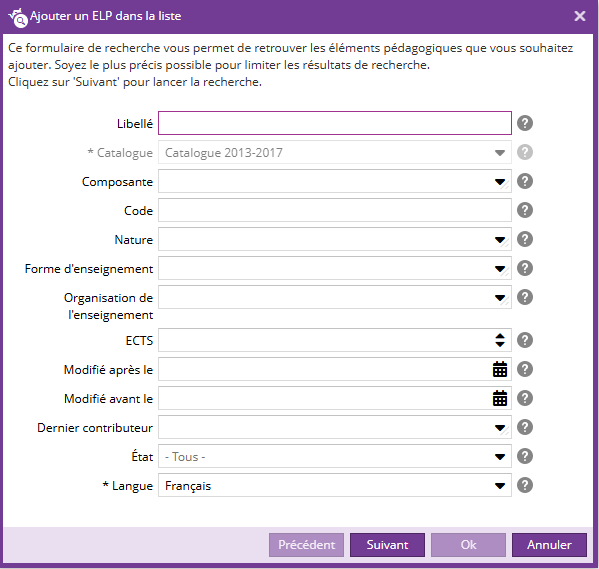
Search for an ELP
Click the "Share an ELP " button to open a window where you can enter the search criteria forELP :
Add a component
To add a component (or an institution), click the "New Component " button on the"Program Offerings " tab:

Enter the component name and then click Save. The new component is then created.
To edit the course, please follow the instructions on the"Editing the Course Catalog" page.
Add a contact
To add a contact, click the "New Contact " button on the "Training Offer " tab:

Then enter the contact's name and save.
To edit the contact information, please follow the instructions on the "Editing the Training Offer" page.
 Back to top